How to Deactivate Facebook Safely — Avoid These Common Mistakes!
Learn how to deactivate your Facebook account safely in 2025 without losing data or accidentally deleting your account. Avoid common mistakes and follow a step-by-step guide for both mobile and desktop.
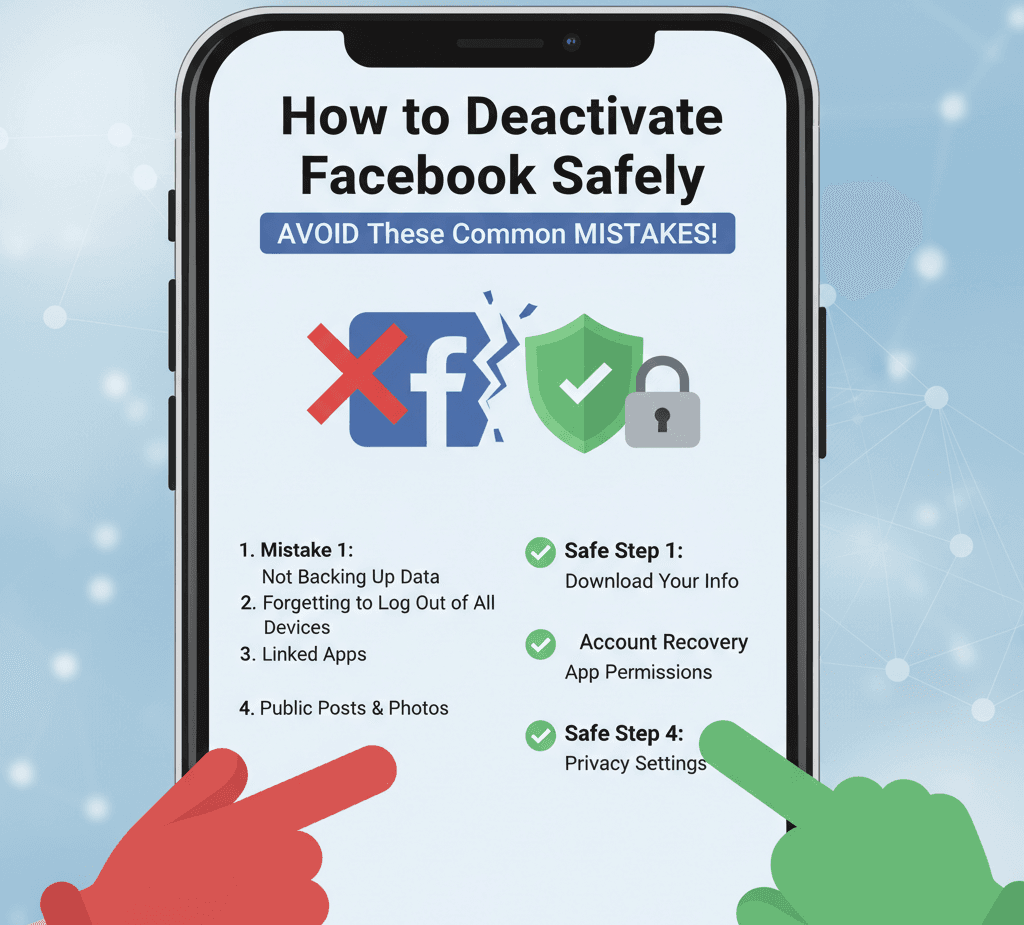
1. Introduction
Many people today are rethinking their social media habits. They may have concerns about privacy, want to reduce screen time, or simply need a break. Learning how to deactivate Facebook has become a useful skill. However, if you do it incorrectly, you could lose access to data, keep apps connected, or accidentally delete your account. This guide will show you how to deactivate Facebook safely and correctly.
2. Difference Between Deactivation and Deletion
Before taking any action, it’s important to understand the difference:
Deactivation
Deletion
Since this guide focuses on deactivating Facebook , we’ll only cover the reversible option.
3. Steps to Deactivate Facebook Safely
Here are the updated steps for 2025 Facebook settings.
A. On Desktop (Computer/Laptop)
1. Go to facebook.com and log in.
2. Click your profile picture in the top-right corner.
3. Select Settings & privacy , then Settings .
4. On the left sidebar, choose Privacy , then Your Facebook Information .
5. Click Deactivation and Deletion .
6. Select Deactivate Account (NOT "Delete Account").
7. Click Continue to Account Deactivation .
8. Enter your password when asked.
9. Follow the on-screen instructions and confirm.
Your account becomes inactive immediately.
B. On Mobile (Facebook App)
1. Open the Facebook app.
2. Tap the menu icon (three lines).
3. Scroll down to Settings & Privacy , then Settings .
4. Under Account Center , tap Personal Details or Account Ownership and Control .
5. Select Deactivation or Deletion .
6. Choose your Facebook account.
7. Select Deactivate Account .
8. Enter your password and confirm.
Your profile is now hidden until you log in again.
4. Common Mistakes to Avoid
Avoid these common errors to protect your privacy and data:
Mistake #1: Forgetting to Download Your Data
Before deactivating:
This is essential if you ever decide to delete your account later.
Mistake #2: Leaving Connected Apps Active
Apps like Instagram, Spotify, or games may be linked to Facebook.
To fix this:
Mistake #3: Confusing Deactivation with Deletion
Make sure you choose Deactivate , not Delete .
Mistake #4: Thinking Messenger Automatically Deactivates
Messenger stays active unless you turn it off separately.
To deactivate Messenger:
Mistake #5: Not Updating Recovery Information
Ensure your email and phone number are up to date.If you forget your password later, you’ll need them to log in again.
5. How to Reactivate Your Account
Reactivation is simple:
If login fails:
6. Final Tips & Best Practices
By following these steps, you can take a safe, controlled break from Facebook without losing access to your account or data.